Tools Series: Active Directory Security Tool
I often get asked by IT folk and sysadmins what free tools they can use to quickly perform a security check of their local AD, AAD/Entra (or both!) before they appear on their next audit or pentest and to strengthen their authentication domain.
One tool that I have used many times in the past that works well us Purple Knight from semperis https://www.semperis.com/purple-knight/
The latest version 5.1 came out on the 7/8/26. Here’s how to get started with it.
Installation
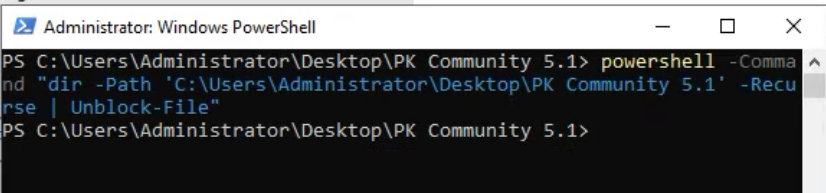
Installation can be a little tricky for the Entra side. The downloading of the tool is easy, its just a zip file you extract. Once downloaded and extracted, the first thing you will want to do is unblock the tool To do this open an elevated powershell and run
powershell -Command "dir -Path 'C:\Users\Administrator\Desktop\PK Community 5.1' -Recurse | Unblock-File"
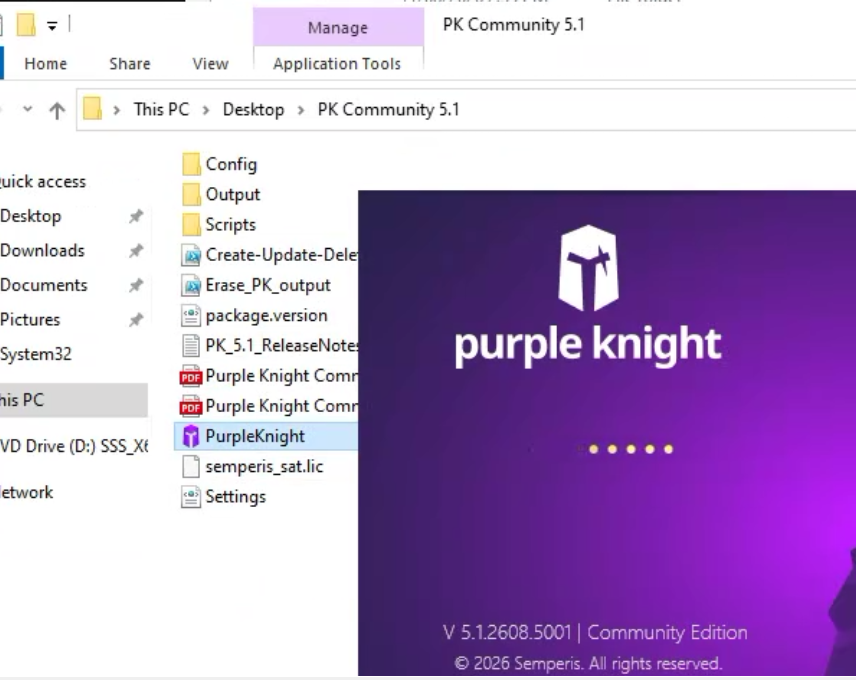
Now it’s time to configure the tool and Entra. Run purple knight from the directory:
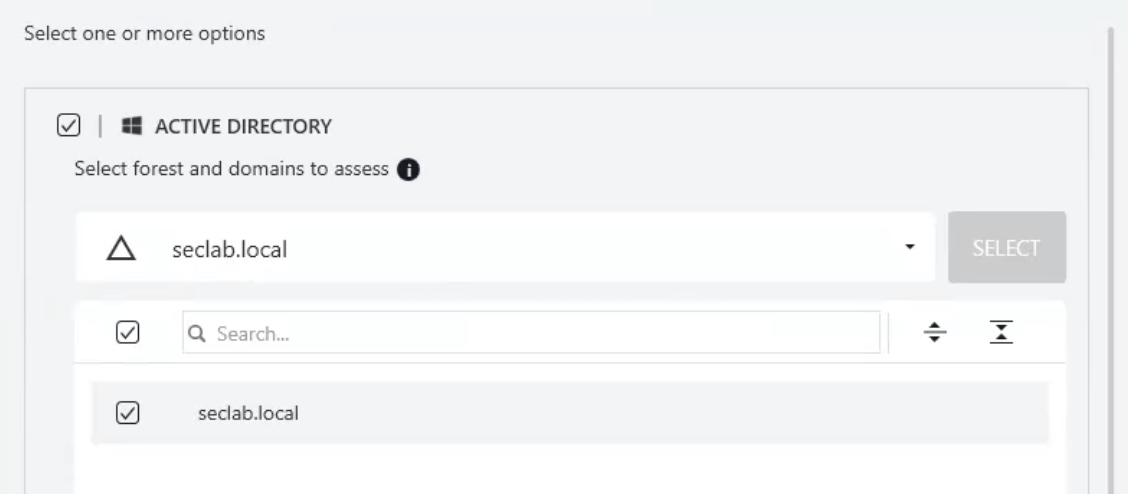
Accept the agreement and choose next. You can choose AD, Entra, or all. If you are just checking AD you just check the box and select the AD and Forest.
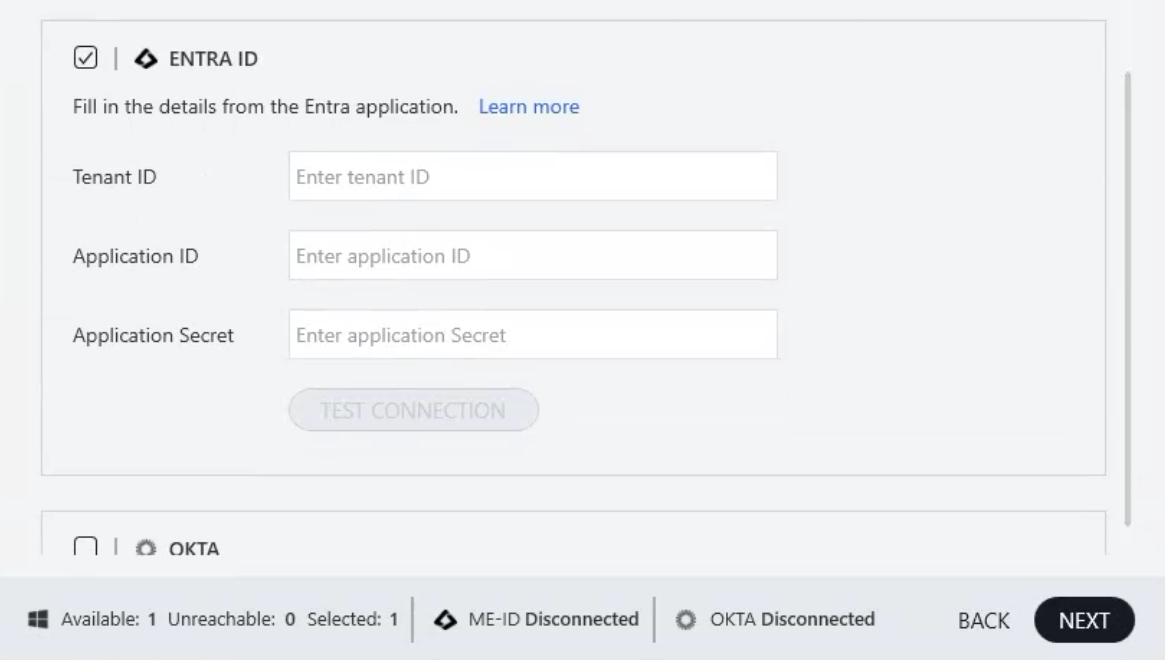
Now for entra you will need a Tenant ID, an application ID and the secret.
Entra/M365 app setup
There are 2 different ways to do this. You can manually set the app and permissions or there is a separate script you can run to set this up.
Manual Method
Log in to Microsoft Entra Admin Center, Go to entra.microsoft.com or portal.azure.com.
Log in with an account that has at least Application Administrator or Global Administrator privileges.
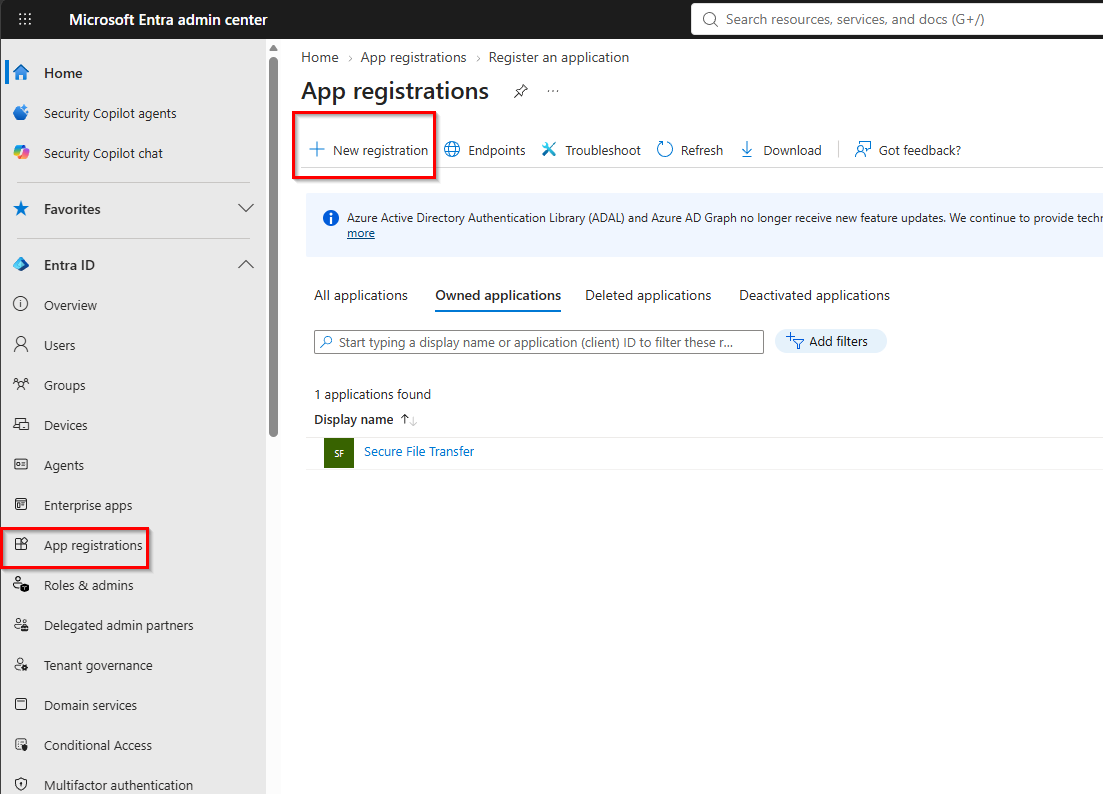
Create the App Registration - In the left navigation menu, go to Applications > App registrations.
Click + New registration.
Set the following options:
Name: PurpleKnight-Scanner (or any name you prefer)
Supported account types: Select Accounts in this organizational directory only (Single tenant).
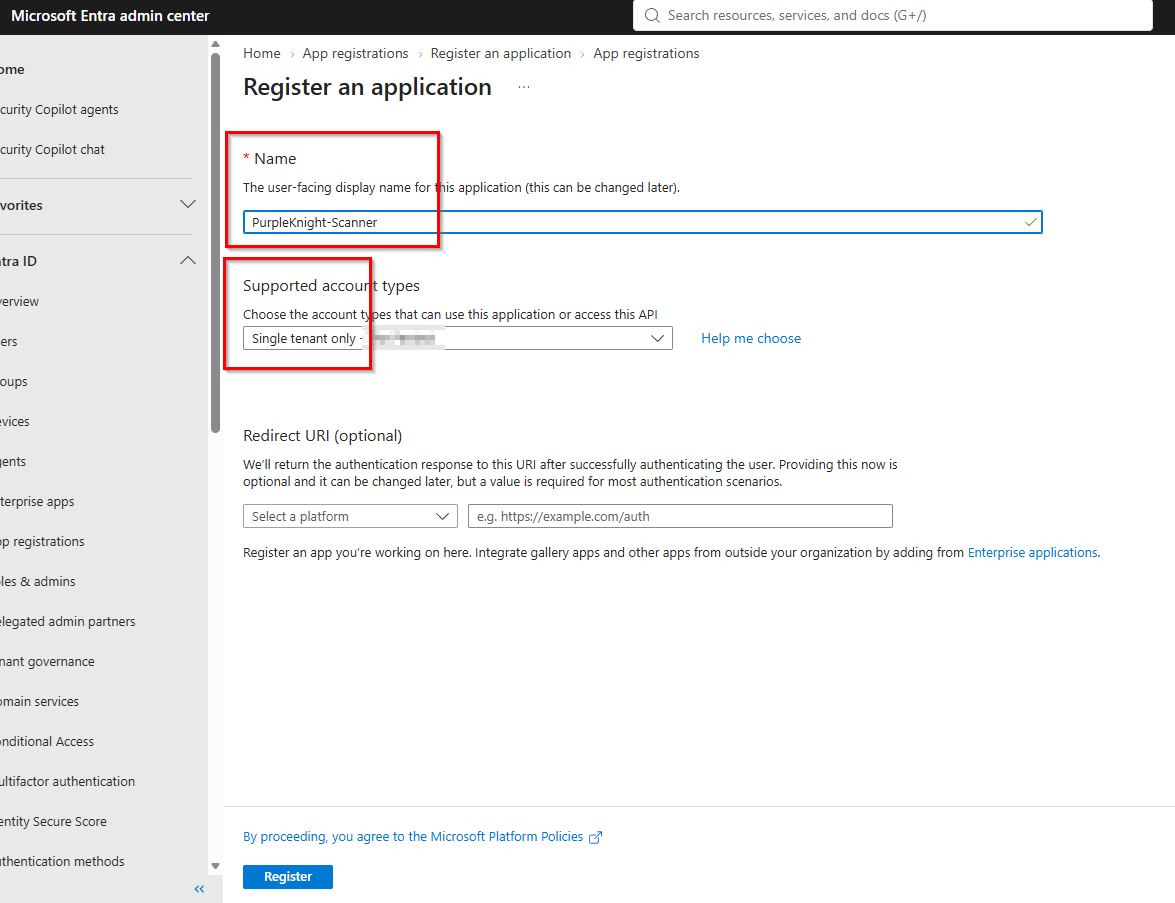
Click Register.
Get your Tenant ID and Application ID. Once the app is created, you will automatically be taken to the Overview page:
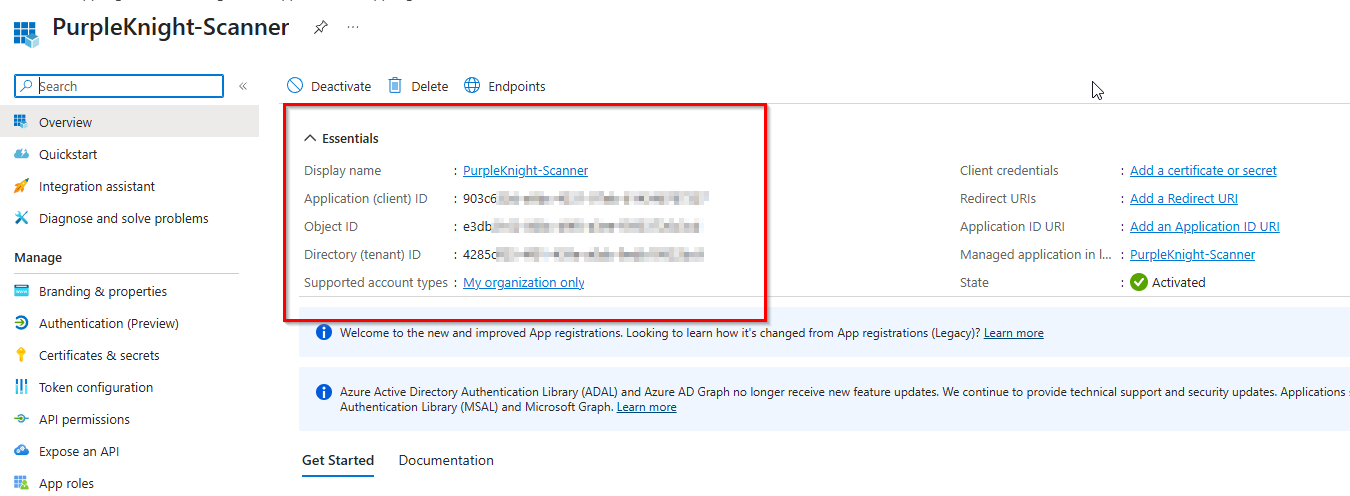
Tenant ID: Copy the value labeled Directory (tenant) ID.
Application ID: Copy the value labeled Application (client) ID.
Now you need to generate the last piece it needs, the Application Secret
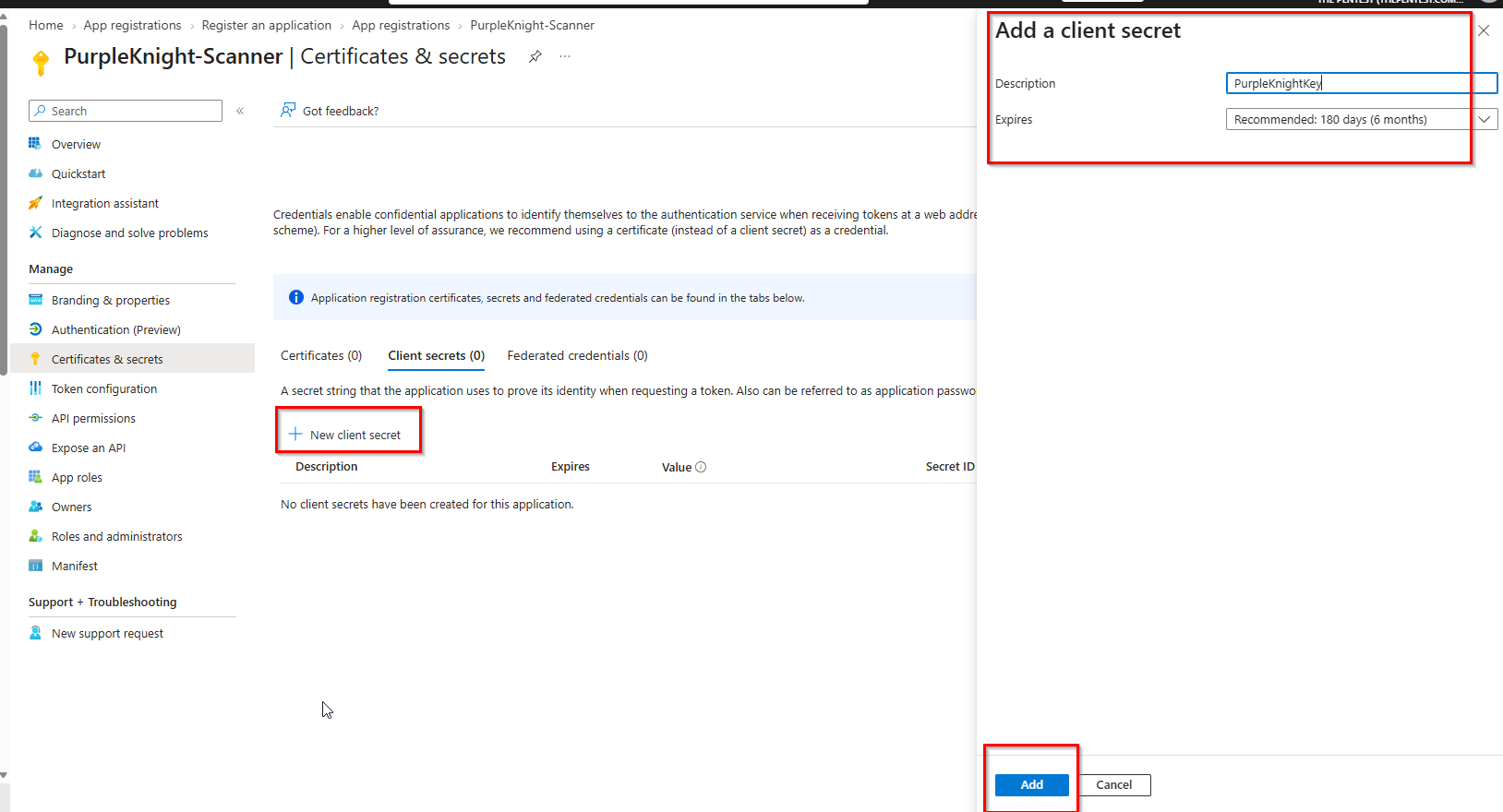
On the left menu under the app registration, click Certificates & secrets.
Click + New client secret.
Add a description (e.g., PurpleKnightKey) and choose an expiration time.
Click Add.
Copy the value in the "Value" column immediately.
Note: This string is your Application Secret. You cannot view it again once you leave this page.
If you don’t copy it right away and you change screen you cant access it again and will need to recreate it.
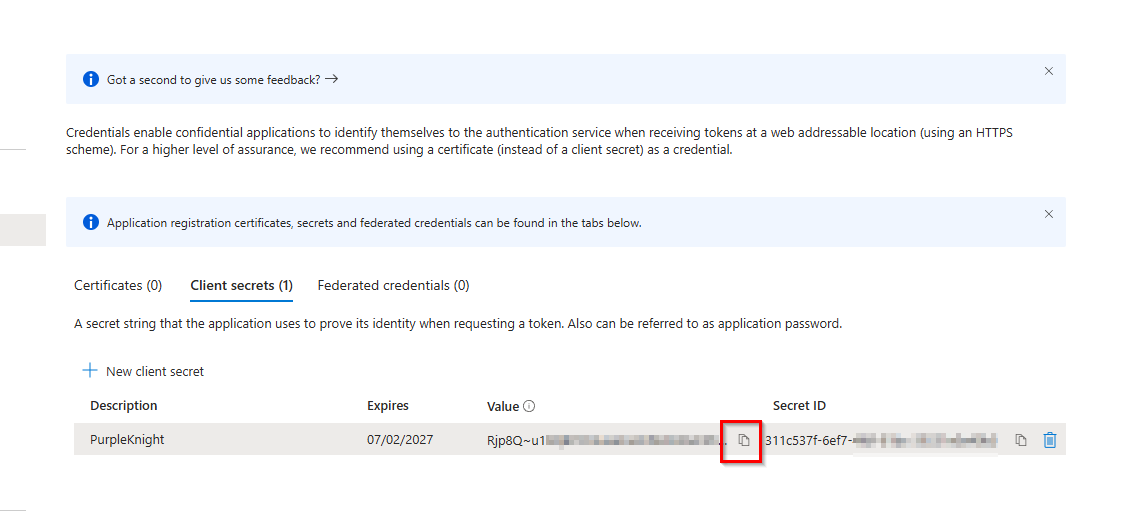
Now you need to assign permissions
For Purple Knight to scan your tenant's security posture, the App Registration needs Microsoft Graph API permissions:
In your App Registration menu, go to API permissions.
Click + Add a permission > Microsoft Graph > Application permissions.
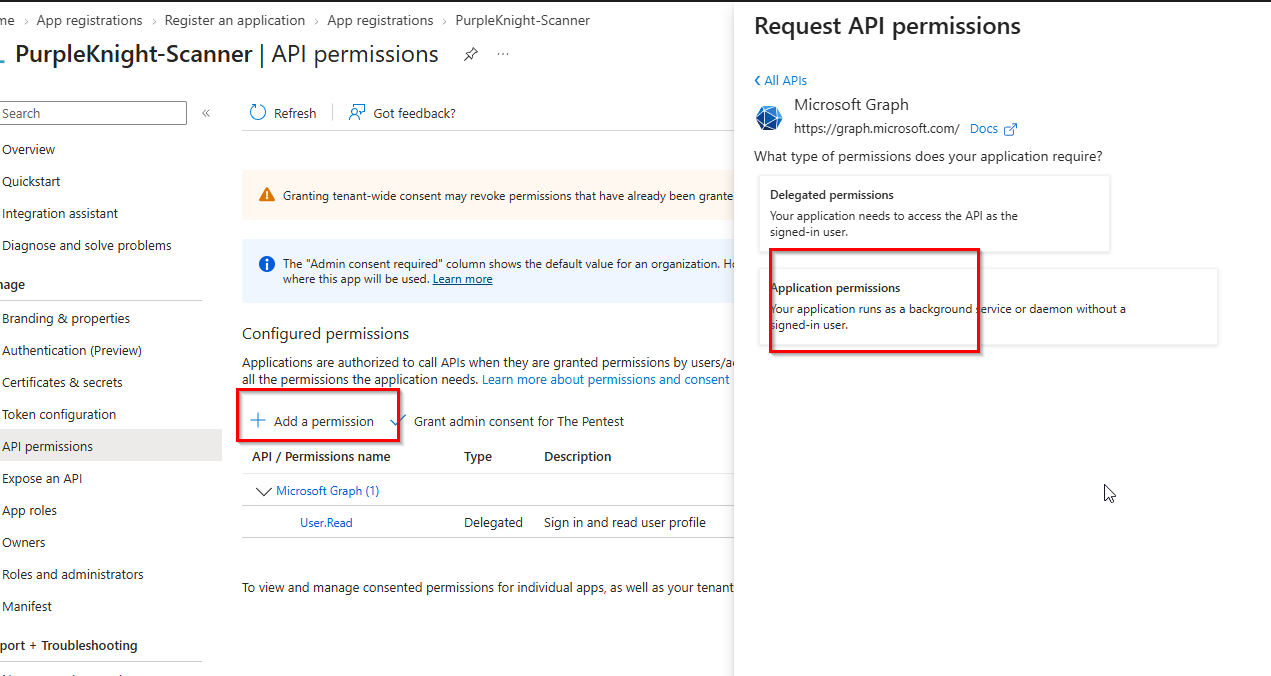
3. Select the read permissions recommended for Purple Knight scans (such as Directory.Read.All, AuditLog.Read.All, Policy.Read.All, User.Read.All).
Click Add permissions.
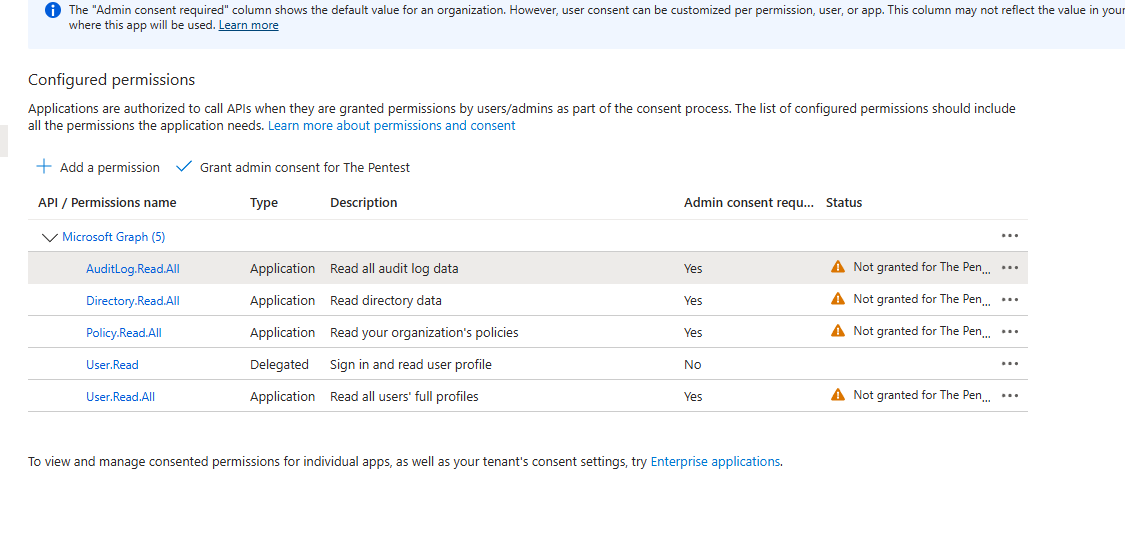
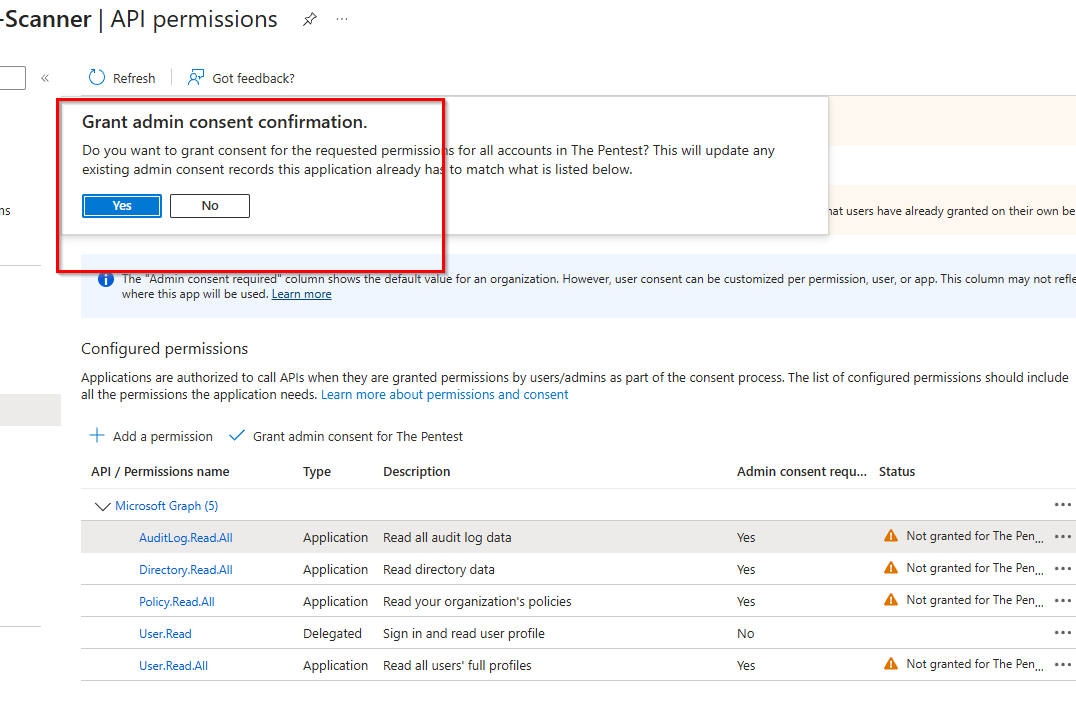
Click Grant admin consent for [Your Organization] and click Yes to approve.
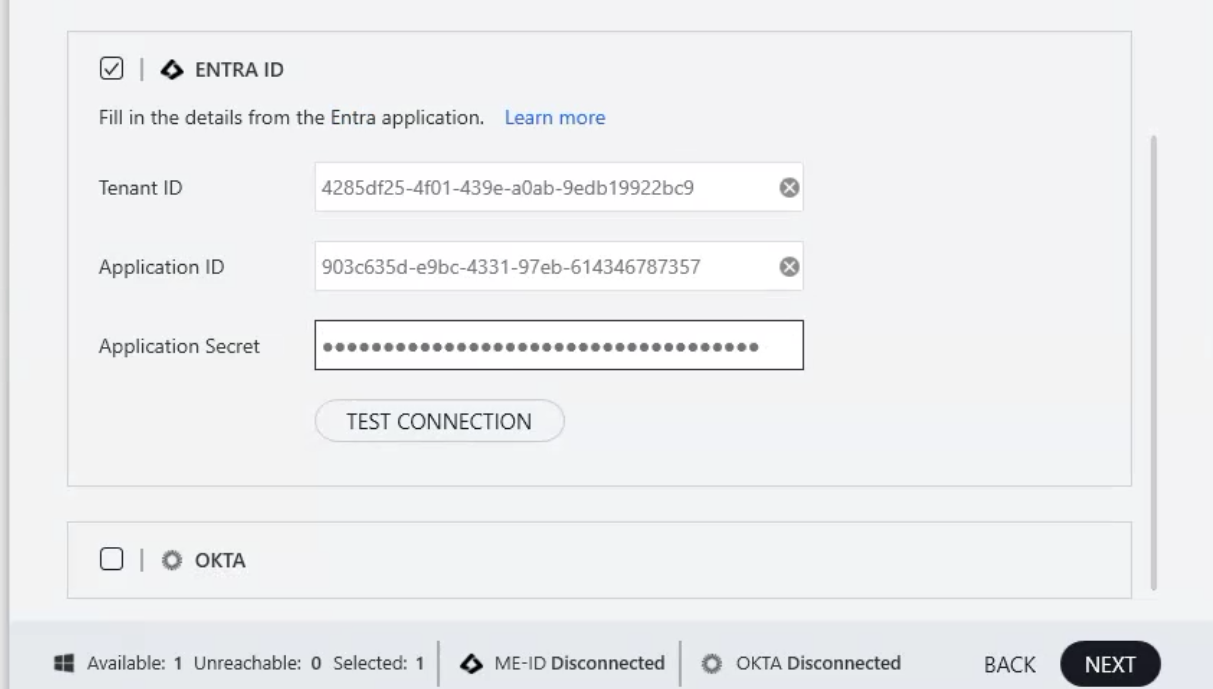
Once done, paste your Tenant ID, Application ID, and Application Secret into the Purple Knight screen and click TEST CONNECTION.
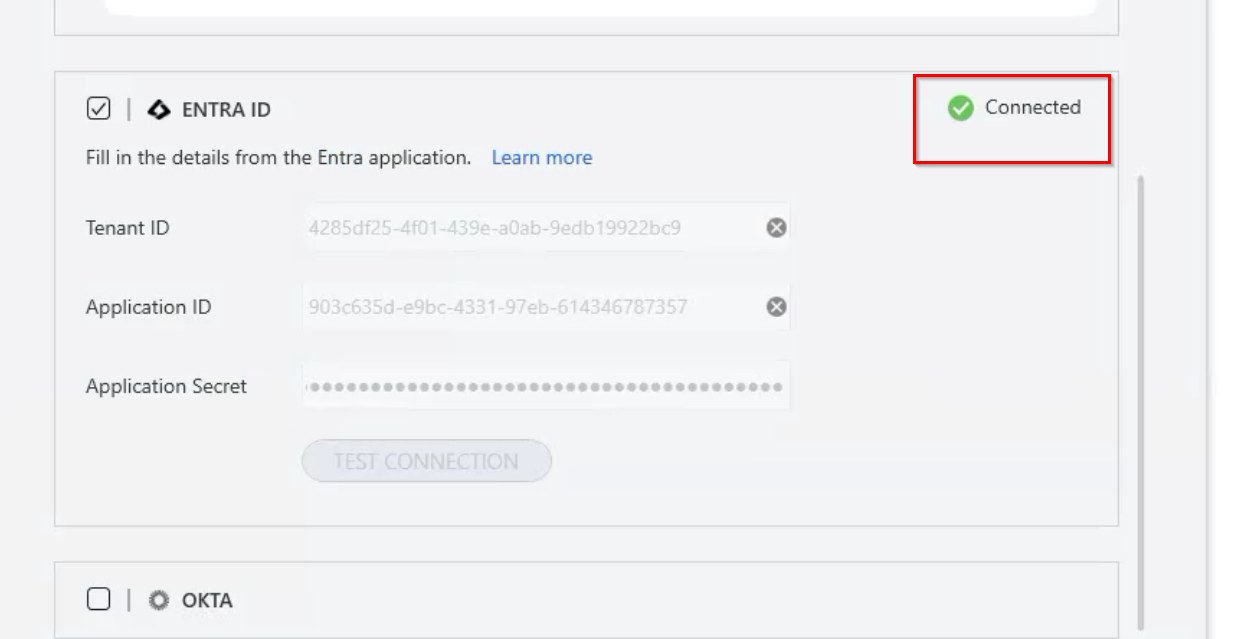
It should say connected:
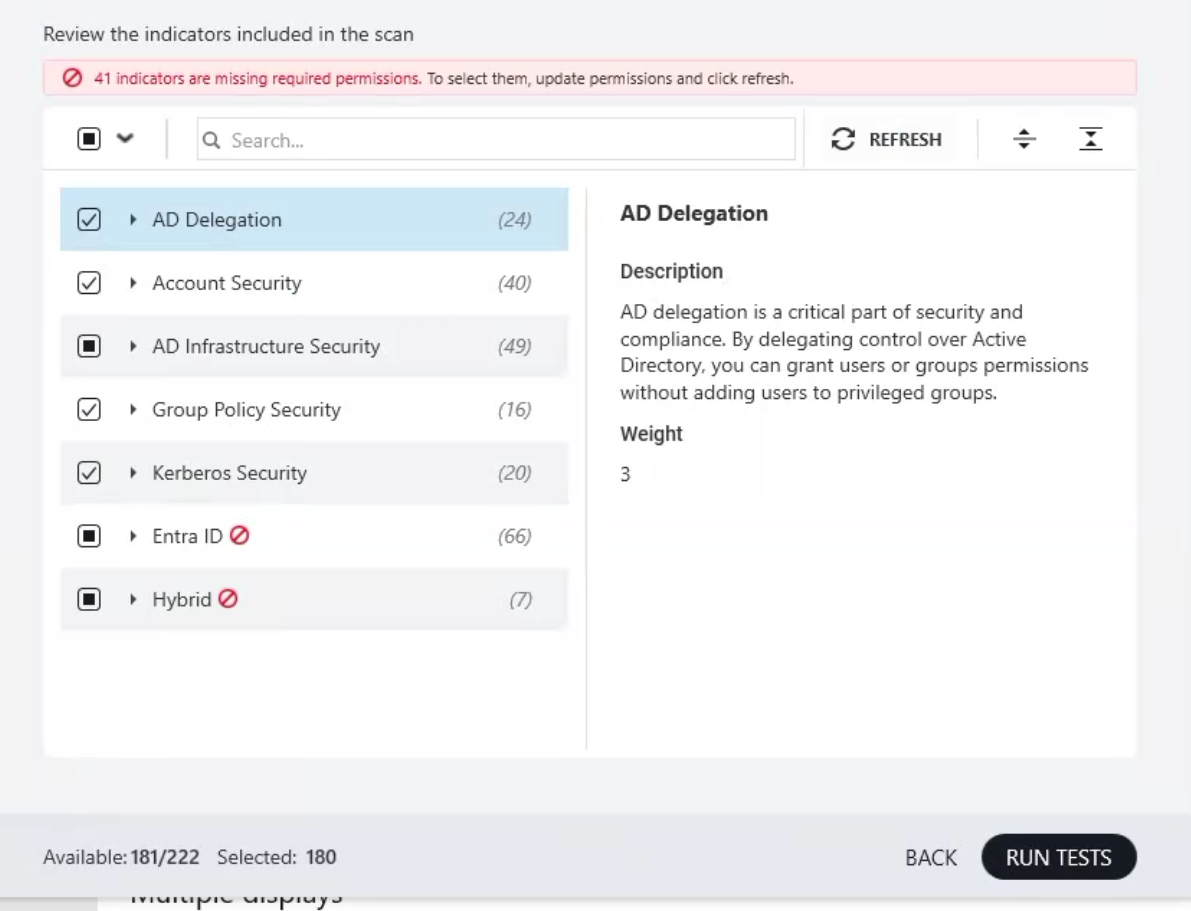
Choose Next, it will bring up scan components. Its common to see a screen like this if it doesnt have enough permission.
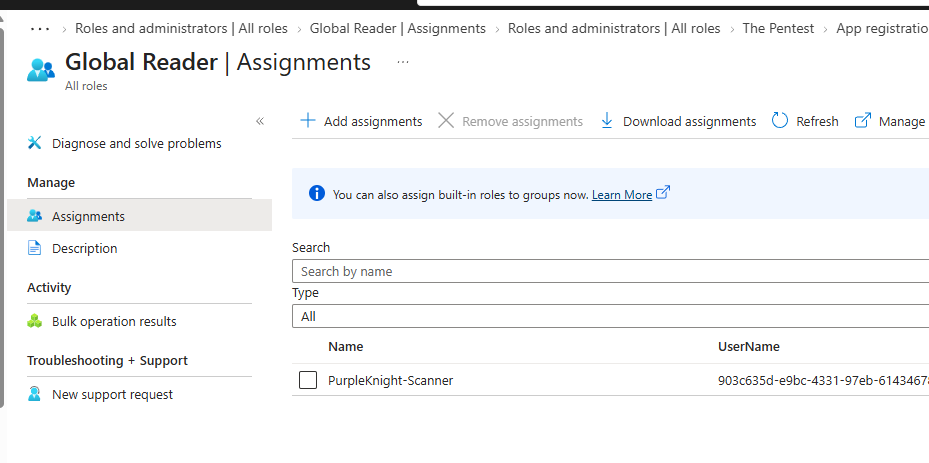
Note: Often I find when this error comes up that you need to add the PurpleKnight-Scanner to the Global Reader and Directory Reader role assignments. To do this;
In the Entra Admin Center, go to Identity > Roles & admins > Roles & admins.
Search for Directory Readers or Global Reader.
Click on the role > + Add assignments.
Search for your App Registration (PurpleKnight-Scanner or equivalent) and assign the role to the app's Service Principal.
Go back to Purple Knight and refresh the checks. Hopefully the issue is now resolved and you can just choose run tests and off you go. But here is another alternative.
Script Method
Semperis have a script here: https://github.com/Semperis/PK-AADAppReg which automatically sets the app reg and permissions.
It needs Powershell 7, so download and install that first, then open up a powershell 7 command prompt. Browse to the directory and run:
.\Create-Update-Delete-EID-PK-Vulnerability-Scanning-App.ps1 -smprsSolution PK -tenantFQDN yourtenant.onmicrosoft.com -appRegDisplayName "PurpleKnight-Scanner" -updateAPIPerms
It will open a web browser and get you to sign in, and ask to if you want to grant permissions. If it completes successfully you should see +++DONE +++
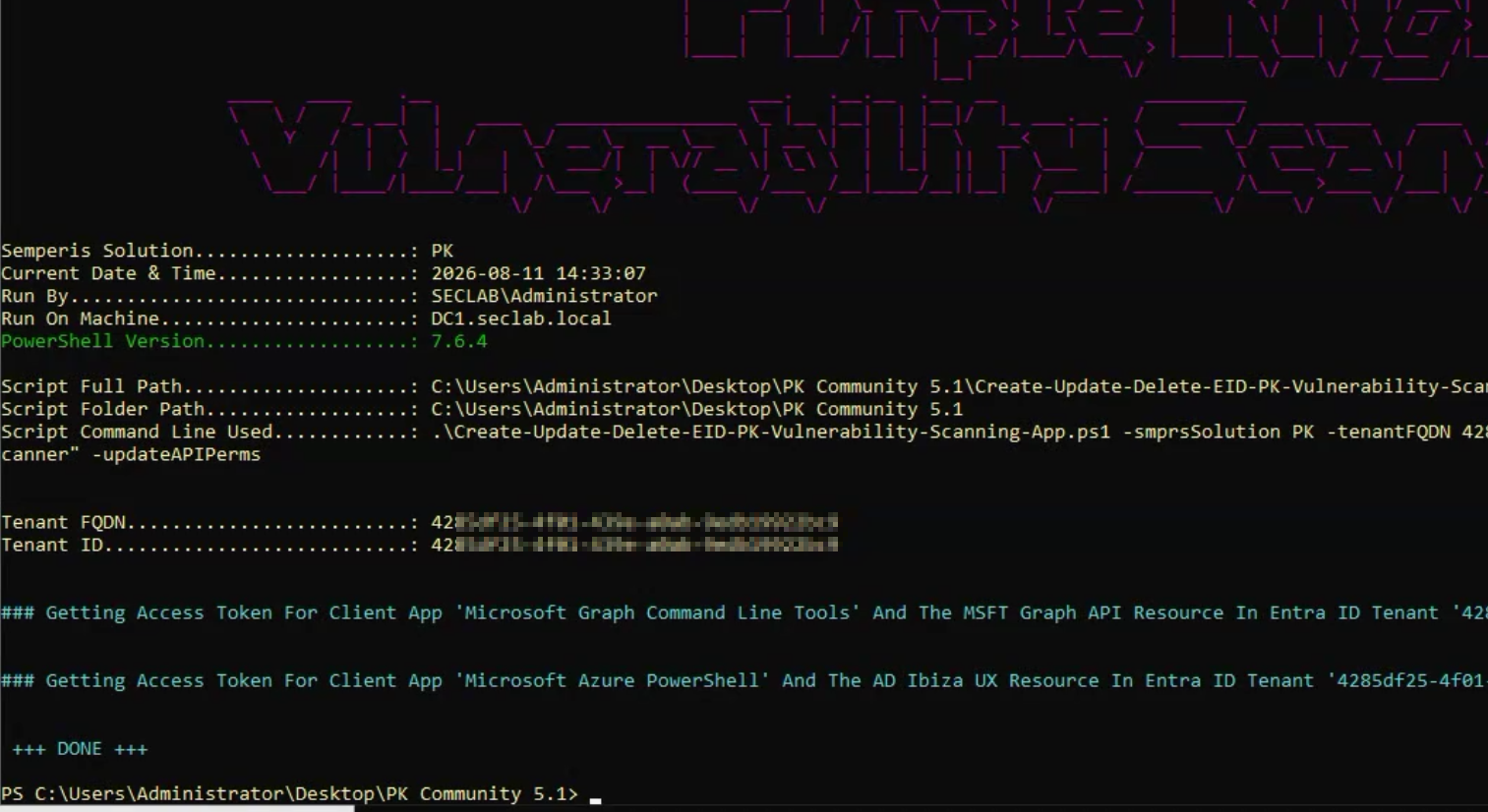
Then your good to, select RUN TESTS in Purple Knight. It will do its thing
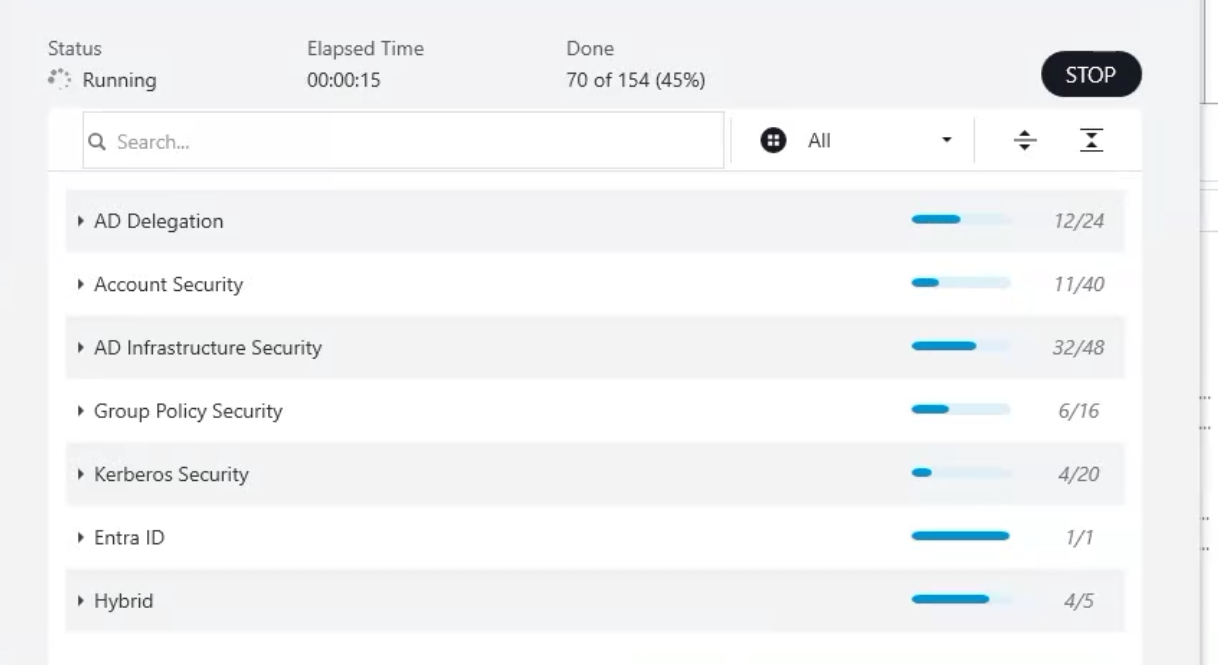
Report
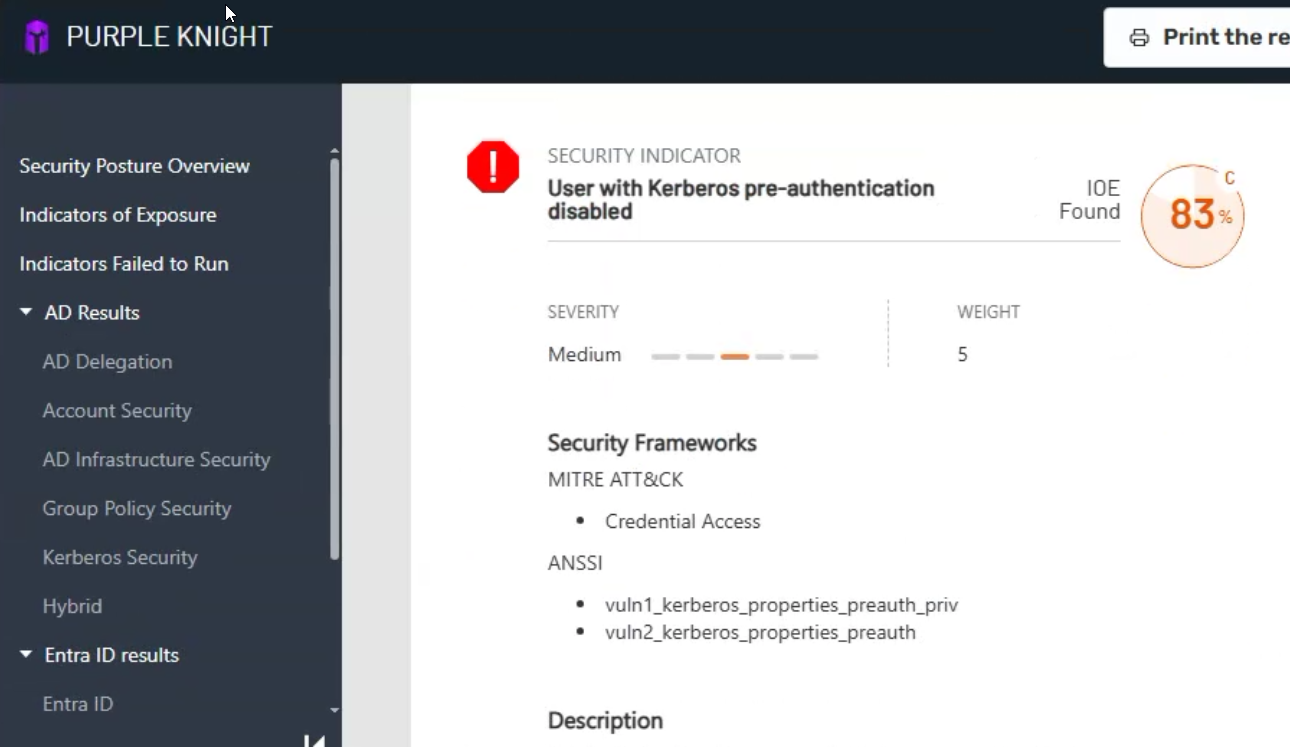
It will then give you a nice report, showing which IoEs found and issues;
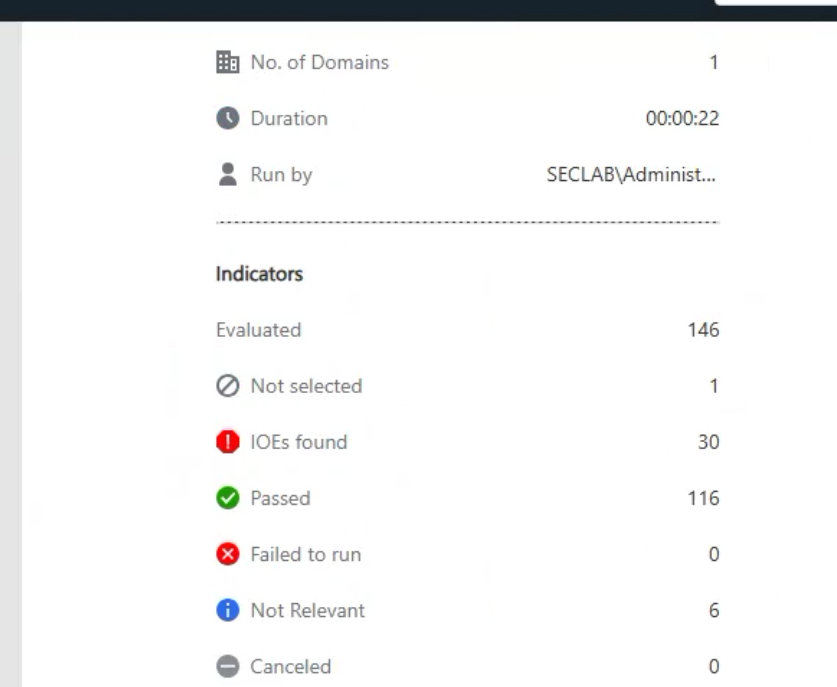
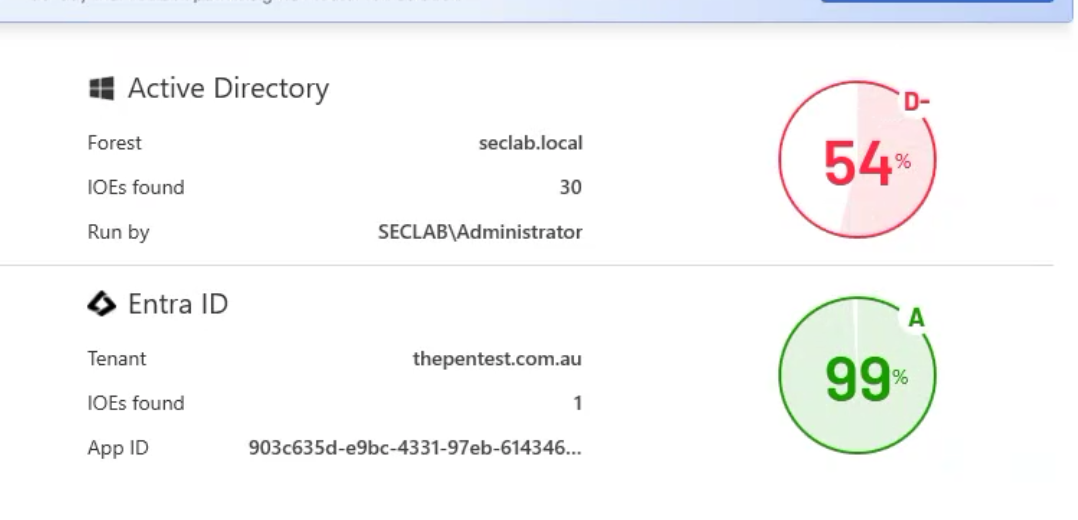
And some findings.
So there you have it, a quick easy free tool to get an idea of the posture of your AD and AAD. It will also check ADCS and other AD components for issues!.
#tools #ad #aad #danweis #boardroomcyber #hackproofyourself #toolguides #semperis #purpleknight